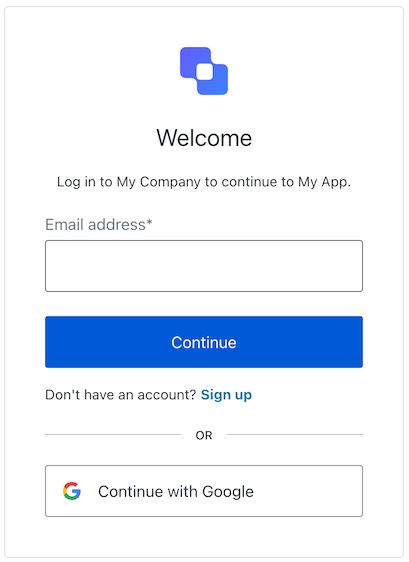
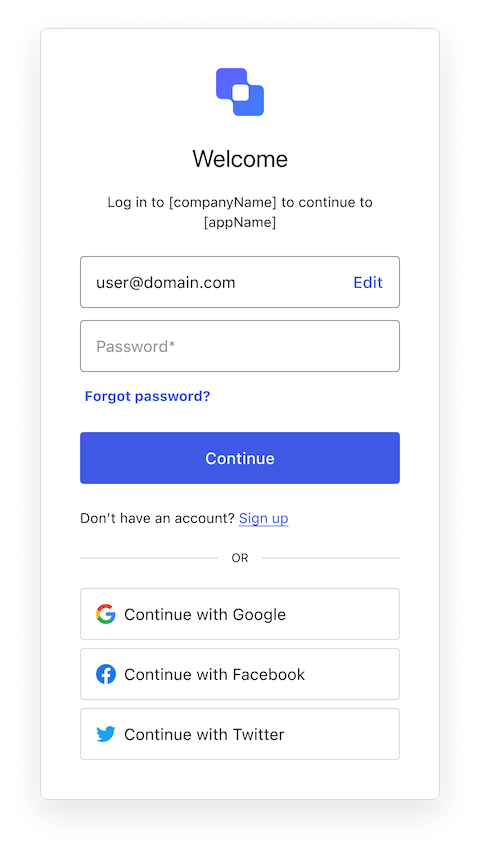
By the end of this guide, you’ll have an identity-first flow with customized Login ID and Login Password screens. To learn more, read the Getting Started guide and visit the SDK reference guide.
In your , set up Universal Login, Identifier First Authentication, and a Database Connection that uses passwords.Run a single-page application to build custom login screens. To understand the context for Advanced Customizations interfaces, clone our boilerplate app: git clone https://github.com/auth0/auth0-acul-react-boilerplateInstall the ACUL SDK. After cloning the react boilerplate, change the directory to the auth0-acul-react-boilerplate folder and install the SDK.
# Clone the ACUL sample application into the root folder of your projectgit clone https://github.com/auth0-samples/auth0-acul-samples.git# Change directory to install the ACUL sample application cd auth0-acul-samples && npm i
This example uses Shadcn components. Run the shadcn init command to set up your project. After answering a few questions to configure components.json, begin adding components to your project. Your completed Build Identifier First Login with Password flow will use button, label, input, text, link, CardHeader, CardTitle, CardDescription, and CardContent components.
npx shadcn@latest initnpx shadcn@latest add button input label text link card
In the auth0-acul-react-boilerplate/src folder, create a folder called screens and a file called Login.tsx. Import the SDK and in the React component initialize the SDK for the screen.
import { LoginId as ScreenProvider } from "@auth0/auth0-acul-js";export default function LoginId() { // Initialize the SDK for this screen const screenProvider = new ScreenProvider(); ...}
Use the SDK to access properties and methods on the screen
Using the SDK you can access the properties and methods of the screen. The Auth0 ACUL JS SDK provides properties and methods to access the data.For more information about context data, read Universal Login Context Data.
Using the SDK, submit the data captured in the screen to the server. The server process this data and will route the user to the next step in the flow. If there are errors, this screen is reloaded, allowing you to display them to the user. Errors are accessed from the SDK.
const formSubmitHandler = (event: ChangeEvent<HTMLFormElement>) => {
    event.preventDefault();

    // grab the value from the form
    const identifierInput = event.target.querySelector(
      "input#identifier"
    ) as HTMLInputElement;

    // Call the SDK
    screenProvider.loginid({ username: identifierInput?.value });
  };
In the auth0-acul-react-boilerplate/src folder, create a folder called screens and a file called Login.tsx. Import the SDK and in the React component initialize the SDK for the screen.
import { LoginPassword as ScreenProvider } from "@auth0/auth0-acul-js";export default function LoginPassword() { // Initialize the SDK const [SDK] = useState(() => new ScreenProvider());\ ... }
Using the SDK, submit the data captured in the screen to the server. The server process this data and will route the user to the next step in the flow. If there are errors, this screen is reloaded, allowing you to display them to the user. Errors are accessed from the SDK.
const formSubmitHandler = (event: ChangeEvent<HTMLFormElement>) => {
    event.preventDefault();

    // grab the values from the form
    const identifierInput = event.target.querySelector(
      "input#identifier"
    ) as HTMLInputElement;
    const passwordInput = event.target.querySelector(
      "input#password"
    ) as HTMLInputElement;

    // Call the SDK
    screenProvider.login({
      username: identifierInput?.value,
      password: passwordInput?.value,
    });
  };